Two lines on one iPhone
Work and personal, sharing one pocket. The setup takes ten minutes. Getting it to behave the way you assumed it would takes a little longer.
What “two lines” actually means
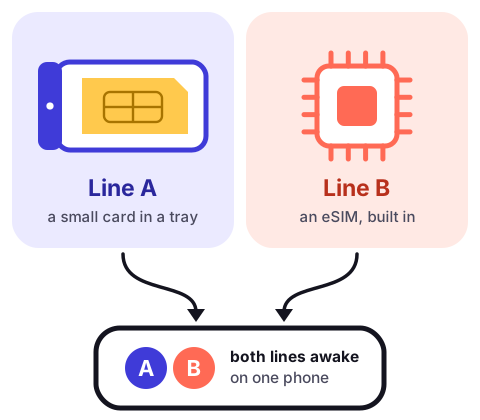
Most recent iPhones can keep two lines awake at once. Depending on the model and where it was sold, that is one small plastic card plus an eSIM, or two eSIMs with no card at all. You can usually store more eSIMs than you can use; two are active, the rest wait their turn.
- Rings for colleagues and clients
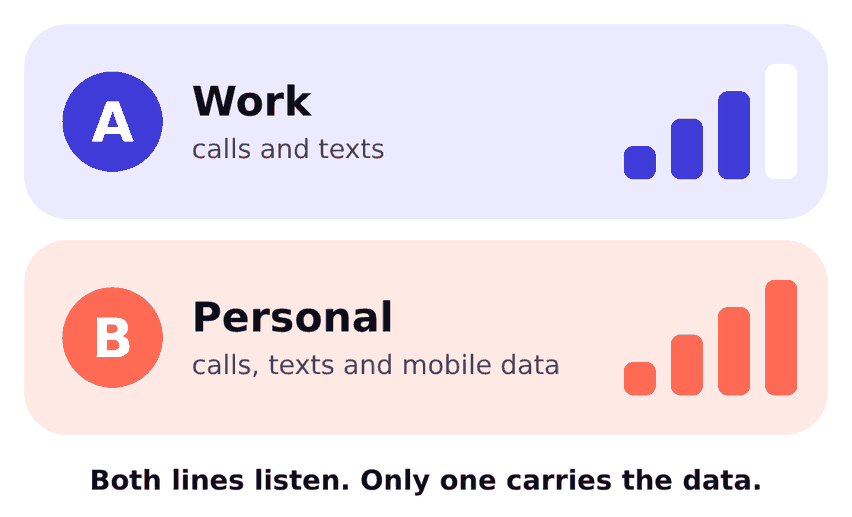
- Goes quiet at seven through a Focus
- Carries no mobile data
- The default for anyone not in my contacts
- Carries all mobile data
- Where my chat apps are registered
Setting up, in the order that saved me grief
- Add the second lineYour operator gives you a code to scan, an app, or a card to push into the tray. Do it on Wi-Fi, sitting down.
- Label both linesIn the cellular settings, each line gets a label. There are ready-made ones and a custom field. Keep it short: the label shrinks to a single letter badge in most places.
- Choose the default voice lineThis is the line used for people who are not in your contacts. I picked Personal, so a wrong number never learns where I work.
- Choose the data lineOnly one line carries mobile data at a time. There is also a switch that lets the phone borrow the other line when coverage drops. I leave it off, so nothing borrows data from the line I did not mean to use.
- Pin lines to the people who matterEach contact can remember a preferred line. I set it for about twenty people and let the default handle the rest.
- Check your messagesiMessage and FaceTime can be reachable on both numbers. Decide which number starts new conversations, or you will confuse your friends.
Things that tripped me up
One call at a time
While I am talking on one line, a call to the other may go straight to voicemail. Whether it does depends on the operator and on Wi-Fi calling. Test it with a patient friend before you rely on it.
Chat apps keep their old number
Third-party messengers are tied to the number they were registered with. Adding a second line changes nothing for them, which is usually what you want.
Not sure which number to hand out? There is a flowchart on the checklists page.